Pages

Showing posts with label O-O. Show all posts

Monday, August 1, 2016

PoweShell: Encrypt TCP Client-Server Traffic with a self-signed X509 Certificate

Following my last PowerShell post: Generate self-signed X509 Certificates, this time I will show you how to use the customized self-signed certificate to encrypt your traffic in a client-server infrastructure. This is really important in order to maintain the confidentiality of your communications. Either if you are conducting a pen-test or an IR engagement, you will want to encrypt your traffic at all times. 

As usual, I will start with some requirements for this program and some definitions in order to make things easier for you guys to understand. Furthermore, I will be providing as many details as I can and a few references for those interested on reading more about this topic. Also, I will provide a quick overview of how I built a TCP Client and Server from my post TCP Client-Server with .NET Classes (not a line-by-line explanation of the scripts). This will make it easier for you to understand how the SSL portion gets integrated with the scripts.


Requirements:


  • At least Windows 7
  • At least PowerShell V2
  • PowerShell ISE
  • Basic understanding of the Public Key Infrastructure (PKI)
  • Basic understanding of TCP Client-Server communications and .NET classes. I recommend to read these first two posts:


SslStream .NET Class


Provides a stream used for client-server communication that uses the Secure Socket Layer (SSL) security protocol to authenticate the server and optionally the client. This stream will be used to send and receive data. This class is part of the System.Net.Security namespace.


Constructor Description
SslStream(Stream, Boolean, RemoteCertificateValidationCallBack)   Initializes a new instance of the SslStream class using the specified Stream, stream closure behavior, and certificate validation delegate.


Method
Description
AuthenticateAsServer(X509Certificate, Boolean, SslProcotols, Boolean) Called by Servers to authenticate the server and optionally the client in a client-server connection using the specified certificates, requirements and security protocols.
AuthenticateAsClient(String) Called by clients to authenticate the server and optionally the client in a client-server connection.


Properties Description
IsSigned  Gets a Boolean value that indicates whether the data sent using the stream is signed.
IsEncryptedGets a Boolean value that indicates whether this SslStream uses data encryption. (Verifies if the data is being encrypted)


SSL Authentication - handshake


  • Client sends a ClientHello message to the server 
  • Server responds with a ServerHello message defining the SSL options
  • Server sends a Certificate message with its own certificate (Public Key)
  • Server finishes its part of the negotiation with a ServerHelloDone message
  • Client sends a ClientKeyExchange message which contains information of the session key encrypted with the server's public key.
  • Client sends ChangeCipherSpec message to the server to let it know that it will start using the new session keys for hashing and encrypting messages.
  • Client sends a ClientFinished message to let the server check the newly activated options
  • Server receives the ChangedCipherSpec message and switches its record layer security state to symmetric encryption using the session keys.
  • Server sends ServerFinished to the client
  • All messages sent from the client to the server and vice-versa will be encrypted using the session key.


TCP Client-Server Overview


ServerClient


  • Start the listener on the specific port.
  • Start accepting connection request.
  • Connection request is accepted and TCP Client .NET Object is created to hangle the remote communication.
  • Network Stream is obtained from the TCP client object and is used to send results and receive data.
  • While loop is created to send and receive commands.
  • If connection is interrupted of terminated, the loop finishes and the server shutdown gracefully.


  • Connect to the server on the specific port where it is listening on.
  • Connection is accepted
  • Network Stream is obtained from the TCP Object client initialized at the beginning to sent the connection request.
  • While loop is created to send commands and receive server responses.
  • If connection is interrupted or terminated, the loop finishes and the client shutdown gracefully. 


TCP Client-Server + SSL Overview


ServerClient


  • Start the listener on the specific port.
  • Start accepting connection request.
  • Connection request is accepted and TCP Client .NET Object is created to hangle the remote communication.
  • Network Stream is obtained from the TCP client object and is used to send results and receive data.
  • SSL Stream object is initialized from the current Network Stream.
  • the X509 Certificate is imported to the server. (From base64 to X509 Format) 
  • Server authenticates as a server defining the X509 Certificate & preferred Certificate requirements) 
  • While loop is created to send and receive commands.
  • If connection is interrupted of terminated, the loop finishes and the server shutdown gracefully.


  • Connect to the server on the specific port where it is listening on.
  • Connection is accepted
  • Network Stream is obtained from the TCP Object client initialized at the beginning to sent the connection request.
  • SSL Stream object is initialized from the current Network Stream.
  • Client authenticates to the server by calling for the name of the server (Name on the Server's Certificate )
  • While loop is created to send commands and receive server responses.
  • If connection is interrupted or terminated, the loop finishes and the client shutdown gracefully. 


Adding SSL functionalities to the TCP Server

1
2
3
4
5
6
7
8
9
    $SslStream = New-Object System.Net.Security.SslStream($TcpNetworkStream, $false)
       
    $Base64Cert = 'MIIKNQIBAzCCCfEGCSqGSIb3DQEHAaCCCeIEggneMII...'

    $SslFakeCert = New-Object System.Security.Cryptography.X509Certificates.X509Certificate2([System.Convert]::FromBase64String($Base64Cert),'')  
    $SslStream.AuthenticateAsServer($SslFakeCert, $false, [System.Security.Authentication.SslProtocols]::tls12, $false)
   
    Write-Verbose "[**] SSLStream Encrypted: $($SslStream.IsEncrypted)"
    Write-Verbose "[**] SSLStream Signed: $($SslStream.IsSigned)"

  • First of all, these lines of code go in between Line#3 & Line #5 of the Second Code Snippet in the Simple TCP Server code section ( PowerShell Post: TCP Client-Server with .NET Classes)
  • Line #1: Initializes a new instance of the SslStream class using the specified network stream and stream closure behavior. Parameters:
    • InnerStream: A Stream Object used by the SslStream for sending and receiving data. In this case it will be the $TCPNetworkStream holding the Network Stream of the $TCPClient Object.
    • LeaveInnerStreamOpen: A Boolean value that indicates the closure behavior of the Stream object used by the SslStream for sending and receiving data. This parameter indicates if the inner stream is left open.
  • Line #3: Defines the variable $Base64Cert which will hold the contents of the X509 Certificate (This is the content of the file that was generated by the Function New-X509 Certificate in my recent PowerShell Post: Generate self-signed X509 Certificates). The content is already base64 encoded.
  • Line #5: Uses the X509Certificate2 Constructor from the X509Certificate2 Class in order to initialize a new instance of the X509Certificate2 Class with the specified X509 Certificate (In this case, it will be the variable $Base64Cert which holds the content of the certificate). As you can see, it first converts the Base64 content to a byte array before using the constructor.
  • Line #6: Uses the method AuthenticateAsServer() from the SslStream Class to authenticate the server. Parameters:
    • Server Certificate: The X509 Certificate used to authenticate the server ($SslFakeCert).
    • ClientCertificateRequired: A Boolean value ($True or $False) that specifies whether the client is asked for a certificate for authentication. Note that this is only a request. If no certificate is provided, the server still accepts the connection request. 
    • EnabledSslProcotols: The SslProtocols value that represents the protocol used for authentication. Make sure you set this one to TLS12 to avoid errors caused by the recent MS16-065 TLS/SSL Protocol Update. 
    • CheckCertificateRevocation: A Boolean value that specifies whether the certificate revocation list is checked during authentication.
  • Line #8: Uses property IsEncrypted from the SslStream Class to indicate whether this SslStream uses data encryption. (Verifies if the data is being encrypted)
  • Line #9: Uses property IsSigned from the SslStream Class to indicate whether the data sent using the stream is signed.
Make sure you replace $TCPNetworkStream with $SslStream after Line #9 on the rest of the code.


Adding SSL functionalities to the TCP  Client

1
2
3
4
5
    $SslStream = New-object System.Net.Security.SslStream ($TcpNetworkStream, $false, { param($Sender, $Cert, $Chain, $Policy) return $true})
    
    $SslStream.AuthenticateAsClient("Wardog",$null,[System.Security.Authentication.SslProtocols]::Tls12, $null)
    Write-Verbose "[**] SSLStream Encrypted: $($SslStream.IsEncrypted)"
    Write-Verbose "[**] SSLStream Signed: $($SslStream.IsSigned)"


  • First of all, these lines of code go right before the while loop in the Simple TCP Client code section ( PowerShell Post: TCP Client-Server with .NET Classes)
  • Line #1: Initializes a new instance of the SslStream class using the specified network stream, stream closure behavior and the certificate validation delegate.
    • InnerStream: A Stream Object used by the SslStream for sending and receiving data. In this case it will be the $TCPNetworkStream holding the Network Stream of the $TCPClient Object.
    • LeaveInnerStreamOpen: A Boolean value that indicates the closure behavior of the Stream object used by the SslStream for sending and receiving data. This parameter indicates if the inner stream is left open.
    • UserCertificateValidationCallBack: A RemoteCertificateValidationCallBack delegate responsible for validating the certificate by the remote party. It bypasses this validation by defining fake parameters (Sender, Cert, Chain and Policy) and returning $True.
  • Line #3: It uses the method AuthenticateAsClient()  from the SslStream Class to authenticate and reach the server. It uses the name on the Server's Certificate to call for it (same as when you browse the Internet. and call for google.com)
    • TargetHost: The name of the server that shares this SslStream.
    • ClientCertificates: The X509CertificateCollection that contains client certificates. In this case just leave it $null to by pass that parameter.
    • EnabledSslProtocols: The SslProtocols value that represents the protocol used for authentication. Make sure you set this one to TLS12 to avoid errors caused by the recent MS16-065 TLS/SSL Protocol Update. 
    • CheckCertificateRevocation: A Boolean value that specifies whether the certificate revocation list is checked during authentication. Since we are using a fake certificate just set it to $false or $null. 
    • The reason why we set all those parameters for the client is to avoid errors/exceptions such as "A Call to SSPI Failed".
  • Line #8: Uses property IsEncrypted from the SslStream Class to indicate whether this SslStream uses data encryption. (Verifies if the data is being encrypted)
  • Line #9: Uses property IsSigned from the SslStream Class to indicate whether the data sent using the stream is signed.
Make sure you replace $TCPNetworkStream with $SslStream after Line #9 on the rest of the code.


Testing Encryption Capabilities 


  • Test was run on two Windows 10 Computers
  • Computers were up to date and had the MS16-065 TLS/SSL Protocol Update installed. 
  • Make sure you have your WireShark set up to look for TLS on whatever port you are using. Check this config:
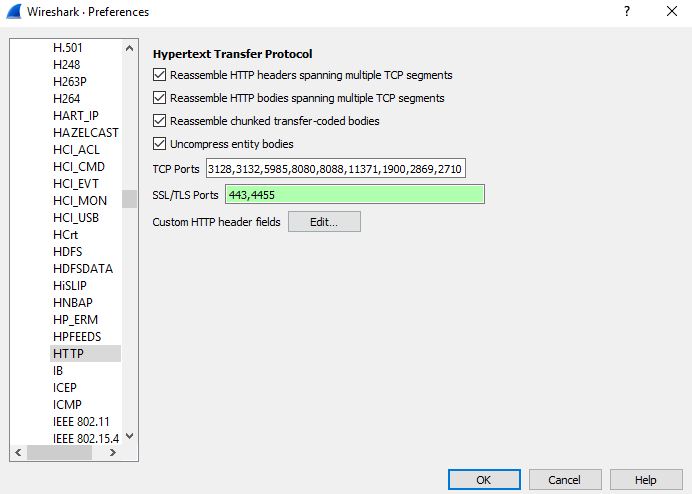


Figure 1. Wireshark Config


Figure 2. Successful Test!


Figure 3: Packet capture


I hope this post was helpful for those that did not know how to apply encryption to a TCP Client-Server communication. Remember you can merge the two scripts and set switches to run it either as a client or server. I just wanted to show you how each script works separate to make it easier to understand. I will be adding more capabilities to these scripts so stay tuned.


Feedback is always appreciated !


References


https://msdn.microsoft.com/en-us/library/system.net.security.sslstream(v=vs.110).aspx - SslStream Class
https://support.microsoft.com/en-us/kb/3155464 - MS16-065 TLS/SSL Protocol Update

Sunday, July 31, 2016

PowerShell: Generate self-signed X509 Certificates

When talking about TCP Client-Server infrastructures, there is always the question about the confidentiality of the traffic between both sockets. In my last PowerShell post: TCP Client-Server with .NET Classes, I explained how easy it was to build such a infrastructure, but the traffic between the two ends was not being encrypted. What if you need to encrypt your traffic when sending and receiving data from a compromised host (TCP server)? This applies to both teams (Red & Blue). During a pen-testing or an IR engagement, you will definitely want to encrypt your communications. Either to avoid security controls or defeat any type of sniffing or man-in-the-middle happening on the compromised host.

In this post, I will go over how to generate a self-signed X509 Certificate in order to encrypt/decrypt and sign the traffic between a client and server (The certificate will be applied to our TCP Client-Server Architecture built in my last PowerShell post: TCP Client-Server with .NET Classes on a separate post) . I will start with some definitions and also provide several references for those that want to read more about this topic and the COM Interfaces used.

Requirements:
  • At least Windows 7
  • At least PowerShell v2
  • PowerShell ISE
  • Basic-Intermediate understanding of the Public Key Infrastructure (PKI)


Public Key Infrastructure (PKI) - Refresh! 

Public-key cryptography (also called asymmetric-key cryptography) uses a key pair to encrypt and decrypt content. The key pair consists of one public and one private key that are mathematically related. An individual who intends to communicate securely with others can distribute the public key but must keep the private key secret. Content encrypted by using one of the keys can be decrypted by using the other.

Even though this sounds easy to follow, there was a concern that one could not able to verify if the public key used to encrypt the data came from the individual holding the private key on the other end. Someone could easily sit in the middle of the two parties and insert its own public key in the conversation. See the image below to understand this better:


Figure 1. Man-in-the-middle w/o certificates


In order to improve this first basic encryption framework, a Certification Authority (CA) was added to the process with the main goal of providing ownership validation of the public key. accomplishes this by issuing signed (encrypted) binary certificates that affirm the identity of the certificate subject and bind that identity to the public key contained in the certificate. The CA signs the certificate by using its private key. It issues the corresponding public key to all interested parties in a self-signed CA certificate. 


X.509 Public Key Certificates

The X.509 public key infrastructure (PKI) standard identifies the requirements for robust public key certificates. A certificate is a signed data structure that binds a public key to a person, computer, or organization. 


Component Object Model (COM) & PowerShell

It is a binary-interface standard for software components introduced by Microsoft in 1993. It is used to enable inter-process communication and dynamic object creation in a large range of programming languages. COM is the basis for several other Microsoft technologies and frameworks, including OLE, OLE Automation, ActiveX, COM+, DCOM, the Windows shell, DirectX, UMDF and Windows Runtime. PowerShell allows you to use COM interfaces to extend its capabilities beyond the limited tasks that can be performed by using only cmdlets.


Generate X.509 Certificate

Code:

 1
 2
 3
 4
 5
 6
 7
 8
 9
10
11
12
13
14
15
function New-X509Certificate 
{ 
    Param (
        [Parameter(Position = 0, Mandatory = $true)]
        [ValidateNotNullOrEmpty()]
        [String]$CommonName,
        [Parameter(Mandatory=$true)]
        [ValidateSet("1.3.6.1.5.5.7.3.1","1.3.6.1.5.5.7.3.2")]
        [ValidateNotNullOrEmpty()]
        [String]$EKValue
    )      

    $DN = New-Object -ComObject 'X509Enrollment.CX500DistinguishedName.1'
    $DN.Encode("CN=$CommonName", 0)
}


  • Line #1-11: Creates the function New-X509Certificate and defines the parameters that will be used during the certificate enrollment. First parameter is the CommonName which typically looks like "www.yoursite.com" or "yoursite.com". SSL Server Certificates are specific to the Common Name that they have been issued to at the Host level. The Common Name must be the same as the Web address the client will be accessing when connecting to a secure site. Next, the EKValue (Extended Key Value) is defined. There are two valid options only for this parameter.
    • 1.3.6.1.5.5.7.3.1 - Indicates that the certificate can be used as an SSL Server Certificate
    • 1.3.6.1.5.5.7.3.2 = Indicates that the certificate can be used as an SSL Client Certificate
  • Line #13: Allows the program to initialize and use the IX500DistinguishedName interface (COM Interface) along with its methods and properties.
  • Line #14: Uses the method Encode() from the IX500DistinguishedName interface to initialize an object from a string that contains a distinguished name ($CommonName).
    • First param: A basic String (BSTR) variable that contains the string to encode
    • Second param: An X500NameFlags enumeration value that specifies the format of the encoded value. X509Enrollment.CX500DistinguishedName exposes all the various encoding options available
      • XCN_CERT_NAME_STR_NONE = 0


1
2
3
4
5
6
7
8
    $PrivateKey = New-Object -ComObject 'X509Enrollment.CX509PrivateKey.1'
    $PrivateKey.ProviderName = "Microsoft RSA SChannel Cryptographic Provider" 
    
    $PrivateKey.KeySpec = 1
    $PrivateKey.ExportPolicy = 2
    $PrivateKey.MachineContext = $true
    $PrivateKey.Length = 2048
    $PrivateKey.Create()

  • Line #1: Initializes the CX509PrivateKey Interface (COM Interface).The IX509PrivateKey interface represents an asymmetric private key that can be used for encryption, signing and key agreement.
  • Line #2: Fakes the Cryptographic provider with the property ProviderName
  • Line #4: Uses the property KeySpec from the IX509PrivateKey interface to specify whether a PK can be used for (signing or Encryption or both).
    • XCN_AT_NONE = 0
      • It is set if the provider that supports the key is a Cryptography API: Next Generation (CNG)
    • XCN_AT_KEYEXCHANGE = 1
      • The Key can be used to encrypt (including Key Exchange) or sign depending on the Algorithm.
      • For RSA Algorithms, if this value is set, the Key can be used for both signing and Encryption.
      • For other Alrgorithms, signing may not be supported.
    • XCN_AT_SIGNATURE = 2
      • The key can be used for signing 
  • Line #5: Uses the property ExportPolicy from the IX509PrivateKey interface to specify or retrieve export constraints for a private key.This property is web enabled for both input and output. The property is read and Write.
    • X509PrivateKeyExportFlags values to specify the export policy for private Key
      • XCN_NCRYPT_ALLOW_EXPORT_NONE = 0 /Export is not allowed. This is the default value.
      • XCN_NCRYPT_ALLOW_EXPORT_FLAG = 1 /The private key can be exported.
      • XCN_NCRYPT_ALLOW_PLAINTEXT_EXPORT_FLAG = 2 /The private key can be exported in plain text.
      • XCN_NCRYPT_ALLOW_ARCHIVING_FLAG = 4 /The private key can be exported once for archiving.
      • XCN_NCRYPT_ALLOW_PLAINTEXT_ARCHIVING_FLAG = 8 /Private key can be exported once in plain Text for archiving.
  • Line #6: Uses the property MachineContext from the IX509PrivateKey interface to specify or retrieve a Boolean value (true or false) that identifies the local certificate store context.
    • A VARIANT_BOOL variable that identifies the certificate store context:
      • $TRUE = for the computer
      • $FALSE = for the user
  • Line #7: Specifies or retrieves the length, in bits, of the private key
  • Line #8:  Uses the method Create() from the IX509PrivateKey interface to create an asymmetric Private Key.


1
2
3
4
5
6
7
8
    $HashAlg = New-Object -ComObject 'X509Enrollment.CObjectId.1'
    $HashAlg.InitializeFromAlgorithmName(1, 0, 0, 'SHA512')
    $ServerAuthOid = New-Object -ComObject 'X509Enrollment.CObjectId.1'
    $ServerAuthOid.InitializeFromValue($EKValue)
    $EkuOid = New-Object -ComObject 'X509Enrollment.CObjectIds.1'
    $EkuOid.Add($ServerAuthOid)
    $EkuExtension = New-Object -ComObject 'X509Enrollment.CX509ExtensionEnhancedKeyUsage.1'
    $EkuExtension.InitializeEncode($EkuOid) 


  • Line #1: Initializes the CObjectId Interface (COM Interface) in order to represent an Object Identifier (OID).
  • Line #2: Uses the method InitializeFromAlgorithmName() from the  CObjectId Interface to initialize the object from an algorithm or an object identifier.
    • ObjectIDGroupId: Specifies the OID Group to search
      • XCN_CRYPT_ANY_GROUP_ID = 0
      • XCN_CRYPT_HASH_ALG_OID_GROUP_ID  = 1,
      • XCN_CRYPT_ENCRYPT_ALG_OID_GROUP_ID = 2,
      • XCN_CRYPT_PUBKEY_ALG_OID_GROUP_ID = 3,
      • XCN_CRYPT_SIGN_ALG_OID_GROUP_ID = 4,
      • XCN_CRYPT_RDN_ATTR_OID_GROUP_ID = 5,
      • XCN_CRYPT_EXT_OR_ATTR_OID_GROUP_ID  = 6,
      • XCN_CRYPT_ENHKEY_USAGE_OID_GROUP_ID = 7,
      • XCN_CRYPT_POLICY_OID_GROUP_ID = 8,
      • XCN_CRYPT_TEMPLATE_OID_GROUP_ID = 9,
      • XCN_CRYPT_LAST_OID_GROUP_ID = 9,
      • XCN_CRYPT_FIRST_ALG_OID_GROUP_ID = 1,
      • XCN_CRYPT_LAST_ALG_OID_GROUP_ID = 4,
      • XCN_CRYPT_OID_DISABLE_SEARCH_DS_FLAG  = 0x80000000,
      • XCN_CRYPT_KEY_LENGTH_MASK = 0xffff0000
    • ObjectIdPublicKeyFlags: Enumeration value that specifies whether to search for signing or an encryptionalgorithm.
      • XCN_CRYPT_OID_INFO_PUBKEY_ANY = 0, /Agorithm can be used for signing or encryption
      • XCN_CRYPT_OID_INFO_PUBKEY_SIGN_KEY_FLAG = 0x80000000, /Algorithm used for signing
      • XCN_CRYPT_OID_INFO_PUBKEY_ENCRYPT_KEY_FLAG = 0x40000000 /Algorithm is used for encryption
    • AlgorithmFlags: Enumeration values to redefine the search for a cryptographic algorithm.
      • AlgorithmFlagsNone  = 0x00000000, /no flags are specified
      • AlgorithmFlagsWrap  = 0x00000001 /Algorithm is used for key wrapping.
    • strAlgorithName: a BSTR variable that contains the name. CNG Algorithm Names
      • 'SHA512' = the 512-bit secure hash algorithm
  • Line #3: Initializes another CObjectId Interface (COM Interface) in order to represent an Object Identifier (OID).
  • Line #4: Uses the method InitializeFromValue() from the  CObjectId Interface to initialize the object from a string that contains a dotted decimal OID. This line takes the parameter $EKValue specified while running the function New0X509Certificate. The certificate content is encoded using Abstract Syntax Notation 1 Distinguished Encoding Rules (ASN.1.DER). Also, the variable $ServerAuthoid stores the ODI value which will be encoded later. EKValues:
    • 1.3.6.1.5.5.7.3.1 = Indicates that the certificate can be used as an SSL Server Certificate
    • 1.3.6.1.5.5.7.3.2 = Indicates that the certificate can be used as an SSL Client Certificate
  • Line #5: Initializes another CObjectId Interface (COM Interface) in order to represent an Object Identifier (OID). Remember that X509Enrollment.CObjectIds.1 allows you to deine methods and properties that enable you to manage a collection of IObjectID Objects.
  • Line #6: Uses the method add() from the  CObjectId Interface to add the ObjectId value set before by $ServerAuthoid.
  • Line #7: Initializes the CX509ExtensionEnhancedKeyUsage interface used to define a collection of OIDs that identify the intended uses of the public key contained in the certificate.
  • Line #8: Uses the method InitializeEncode() from the CX509ExtensionEnhancedKeyUsage interface to initialize the extension from a collection of OIDs that specified the intended uses of the public Key.


1
2
3
4
5
6
7
8
9
    $Certificate = New-Object -ComObject 'X509Enrollment.CX509CertificateRequestCertificate.1'
    $Certificate.InitializeFromPrivateKey(2, $PrivateKey, '')
    $Certificate.Subject = $DN
    $Certificate.Issuer = $Certificate.Subject
    $Certificate.NotBefore = [DateTime]::Now.AddDays(-1)
    $Certificate.NotAfter = $Certificate.NotBefore.AddDays(90)
    $Certificate.X509Extensions.Add($EkuExtension)
    $Certificate.HashAlgorithm = $HashAlg
    $Certificate.Encode()

  • Line #1: Initializes the IX509CertificateRequestCertificate interface which represents a request object for a self-generated certificate, enabling you to create a certificate directly without going through a registration or certification authority.
  • Line #2: Uses the method InitializeFromPrivateKey() from the IX509CertificateRequestCertificate interface to initialize the certificate request using the $privatekey already created before. It uses an IX509PriavteKey object and optionally a template.
    • X509CertificateEnrollmentContext = Enumeration value requested
      • ContextUser=0x1, /The certificate is being requested for an end user
      • ContextMachine=0x2, /The certificate is intended for a computer.
      • ContextAdministratorForceMachine=0x3 /The certificate is being requested by an administrator acting on the behalf of a computer.
    • PrivateKey = Pointer to the IX509PrivateKey interface that represents the private key = $PrivateKey
    • TemplateName = a BSTR variable that contains the Common Name (CN) of the template as it appears in active directory or the dotted decimal object identifier.
  • Line #3-6: defines the subject name ($DN variable), issuer, and the time expiration of the certificate.
  • Line #7: Uses the X509Extensions Interface from the  IX509CertificateRequestCertificate interface to define methods and properties to manage a collection of IX509 extensions. In this case it uses the method Add() in order to add an IX509Extension object ($EkuExtension) to the collection.
  • Line #8: Uses the HashAlgorithm property from the IX509CertificateRequestCertificate interface to specify and retrieve the OID of the hash algorithm used to sign the cert request.
  • Line #9: Uses the Encode() method from the IX509CertificateRequestCertificate interface to sign and encode the certificate request. It creates a key pair. The request is encoded by using Distinguished Encoding Rules (DER) as defined by the ASN.1.The encoding process creates a byte array.


1
2
3
4
5
6
7
8
    $Enroll = New-Object -ComObject 'X509Enrollment.CX509Enrollment.1'
    $Enroll.InitializeFromRequest($Certificate)
    $Enroll.CertificateFriendlyName = $CommonName
    $Csr = $Enroll.CreateRequest() 
    $Enroll.InstallResponse(2, $Csr, 1, '')
    $Base64 = $Enroll.CreatePFX('', 0)
    $file = "$CommonName"+".txt"
    $base64 | out-file $file

  • Line #1: Initializes the IX509Enrollment interface to enroll in a cert and install a certificate response.
  • Line #2: Uses the method InitializeFromRequest() from the IX509Enrollment interface to initialize the enrollment object from an exisiting IX509CertificateRequest Object ($Certificate).
  • Line #3: Uses the property CertificateFriendlName from the IX509Enrollment interface to sets the display name of the certificate to the $CommonName
  • Line #4: Uses the method CreateRequest() from the IX509Enrollment interface to encode the raw data of the request object. It uses the information provided during initialization and other properties that have been specified. Creates a dummy certificate and places it in the request store. It appends the results to variable $Csr
  • Line #5: Uses the method InstallResponse() from the IX509Enrollment interface to install the certificate chain on the end-entity computer.
    • Restrictions (enumeration value): Specifies the type of certificate that can be installed
      • AllowNone = 0x00000000, /Does not allow the installation of untrusted certificates or certificates for which there is no corresponding request.
      • AllowNoOutstandingRequest = 0x00000001, /Creates the private key from the certificate response rather than from the dummy certificate. This makes the dummy certificate options. If this value is not set, the dummy certificate must exist and the private key is extracted from it.
      • AllowUntrustedCertificate = 0x00000002, /Installs untrusted end entity and certification authority certificates. CA certificates include root and subordinate certification authority certificates. Entity certificates are installed to the personal store, and certification authority certificates are installed to the certification store. 
      • AllowUntrustedRoot = 0x00000004 / Performs the same action as the AllowUntrustedCertificate flag but also install the certificate even if the certificate chain cannot be built because the root is not trusted.
    • Response: A BSTR variable that contains the DER-Encoded response. In this case it is the $CSR since the request started on line #4. Remember we are using the DER-encoded Response and not the original request.
    • Encoding: An Encoding type Enumeration value that specifies the type of encoding applied to the string. The encoding type is set to 1 since it was encoded by the type of unicode encoding Base64.
    • Password:Optional password for the Certificate installation. This can be NULL or an empty string. If there is a password, clear it from memory when you have finished.
  • Line #6: Uses the method CreatePFX() from the IX509Enrollment interface to create a Personal Information Exchange(PFX) message. The message is contained in a byte array that is encoded by using DER as defined by ASN.1 standard. The DER-encoded byte array is represented by a string that is either a pure binary sequence or is Unicode encoded.
    • Password:A BSTR variable that contains a password for the PFX Message.This can be NULL to indicate that no password is issued.
    • ExportOptions: Expects an Enumeration Value that specifies how much of the certificate chain is exported.You can export the certificate only, the certificate chain without the root, or the entire chain.
      • PFXExportEEOnly         = 0, / includes only the end entity certificate.
      • PFXExportChainNoRoot    = 1, / Includes the certificate chain without the root CA certificate.
      • PFXExportChainWithRoot  = 2 /Includes the entire certificate chain.
    • Encoding: expects an enumeration value. By default this is XCN_CRYPT_STRING_BASE64. which is 1. There is not need to define it since it has a default value (1).
  • Line #7: Defines the name of the file which will contain the certificate in base64
  • Line #8: Outputs the certificate to a file. In other words this is what happens when the CreatePFX() method is executed:
    • Opens the certificate store in memory for the default provider.
    • Adds the installed certificate to the store or builds the certificate chain, and adds a link to it.
    • Exports the certificate and the private key to a PFX message depending on the export options specified.
    • Encodes the exported message by using DER.


Testing our Function


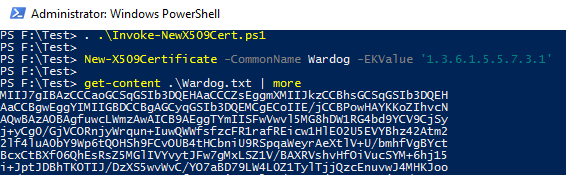
Figure 2. Generating Certificate


Figure 3. Cert shows under my Personal Certificates


Figure 4. Certificate Information


Figure 5. Certificate Information 


As you can see, the function worked as expected and now we can use the certificate and import it to our TCP Client-Server Script. I will be showing how to do that on my next post. I hope this was helpful to those that wanted to learn more about X509 Certificates and how to use PowerShell to generate one. Also, something that I would like to mention here is that you can manipulate the properties of the Certificate such as the expiration or validation time (As shown on the steps). If you want to use the certificate during a Pen-test I would highly recommend to change the Valid From field to something older than 6 months. You do not want to get caught with a certificate that was just created an hour before your pen-test. This is why I suggest to create the certificate separate and not on-the-fly. 

Script available on Github:

https://github.com/VVard0g/CyberWardogLab/blob/master/Invoke-NewX509Cert.ps1


feedback is always appreciated ! 


References

https://msdn.microsoft.com/en-us/library/bb427432(v=vs.85).aspx - PKI
https://msdn.microsoft.com/en-us/library/bb540819(v=vs.85).aspx - X.509 Public Key Certificates
https://en.wikipedia.org/wiki/Component_Object_Model - COM
https://msdn.microsoft.com/en-us/library/windows/desktop/aa380513(v=vs.85).aspx -TLS/SSL Handshake
https://msdn.microsoft.com/en-us/library/windows/desktop/aa377051(v=vs.85).aspx - Distinguished Name Interface
https://msdn.microsoft.com/en-us/library/windows/desktop/aa377809(v=vs.85).aspx - IX509Enrollment Interface